For iPhone & Android
Small app, sharp features.
ShowCards does one thing, carry your loyalty cards, and does it properly on iPhone and Android. Here is the full list.
Scanning
Automatic barcode detection
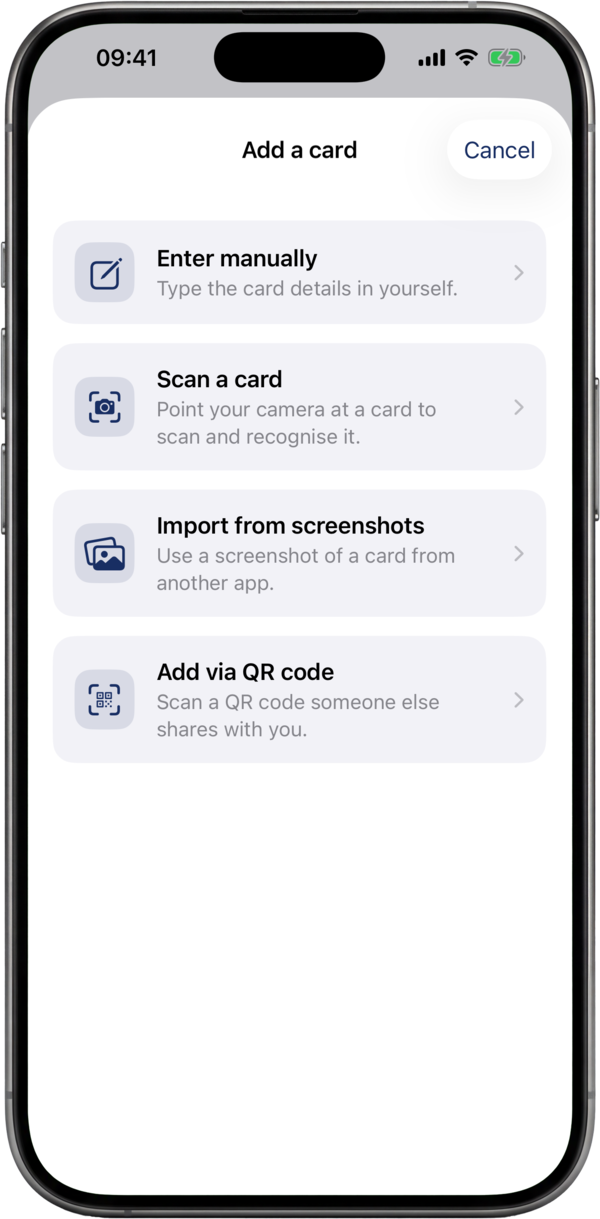
Live camera scanning recognizes the barcode and its format in one step, QR, EAN-13, Code 128, PDF417 and more. Worn card? Type the number by hand instead.
It fills in the store, not just the barcode
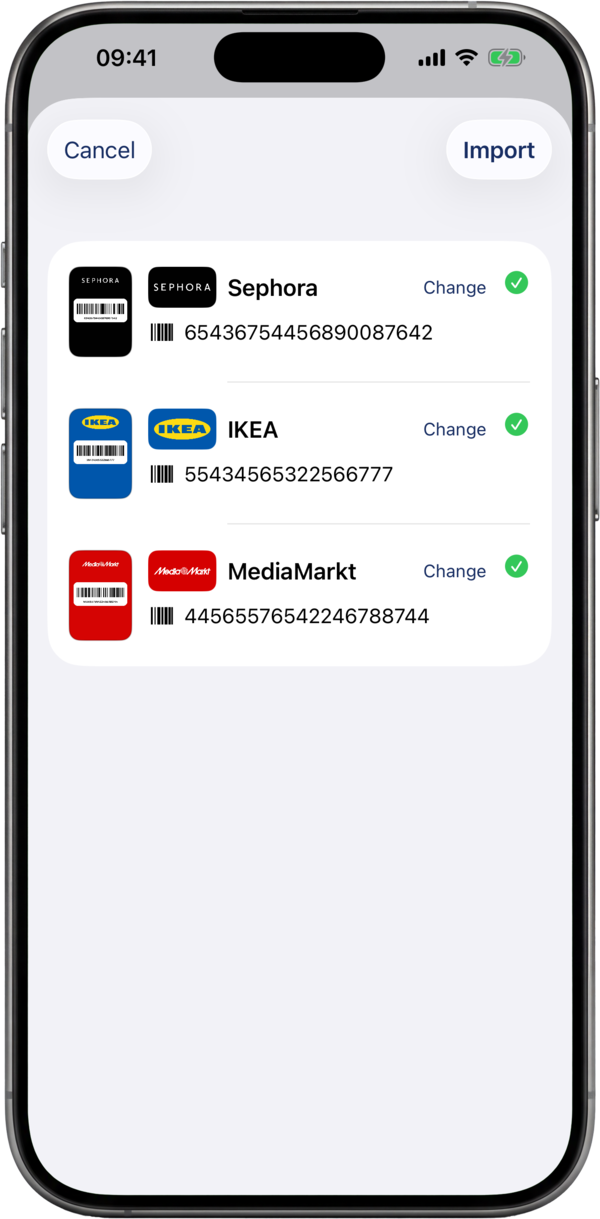
Scan a card and ShowCards recognizes the store, adds its logo and drops it straight into your wallet, ready to use. Wrong store? Change it in a single tap. New cards can be added automatically, too.
Scan from a photo or screenshot
No card in hand? Pull a barcode straight from a photo or a screenshot. ShowCards even reads flat barcodes without guard bars, like the Albert Heijn Bonuskaart.
Showing
Bright, scanner-ready display
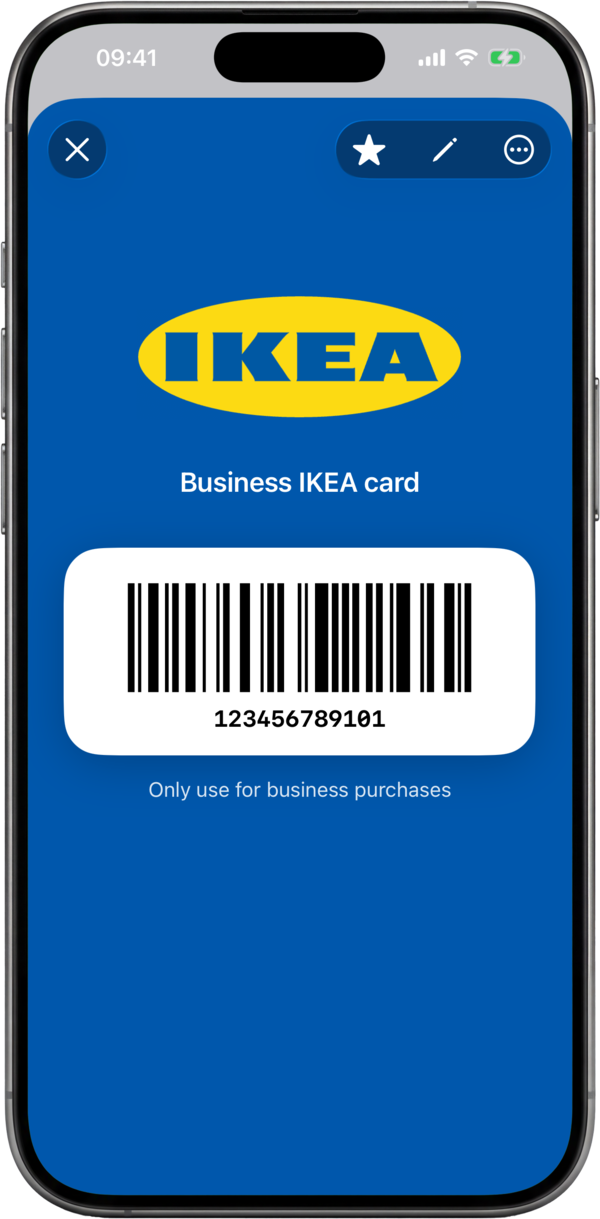
Opening a card raises your screen brightness to maximum and renders the barcode pixel-perfect, so the scanner at the till reads it on the first pass.
Works offline
Everything is stored on your device. In a basement supermarket with no signal, your cards still show instantly.
Organizing
A wallet you can recognize
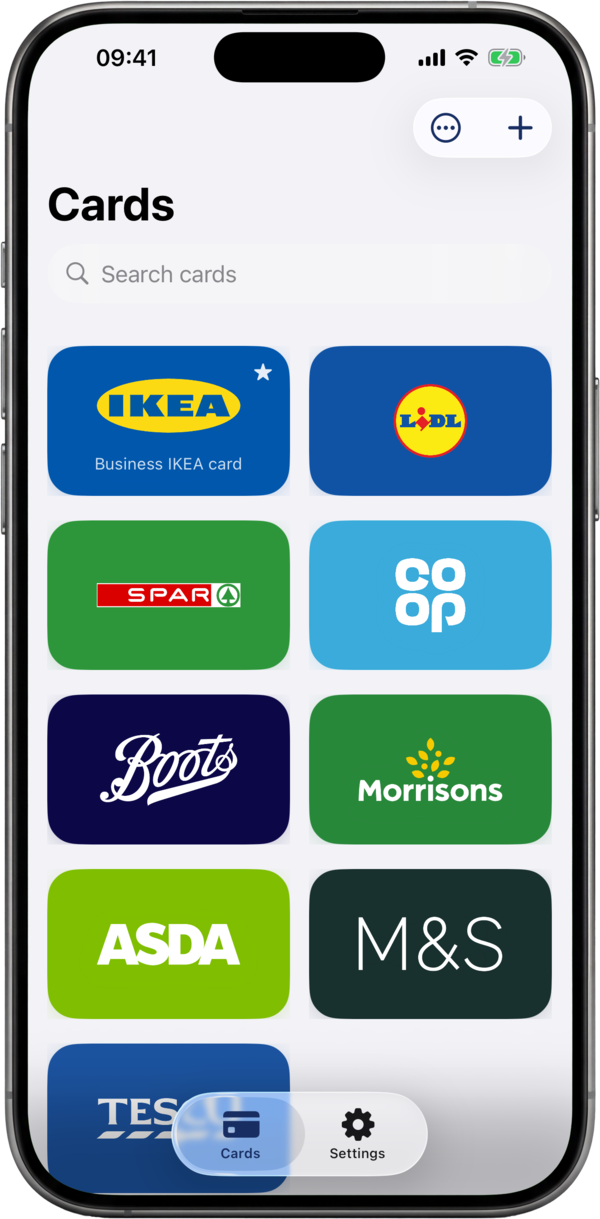
Cards live in a bold grid of brand-colored tiles with logos, not a gray list. Drag to reorder, search, or filter by category.
Star your regulars
Mark the cards you use most and they float to the top of your wallet. They are also the ones your widget, watch and Apple Wallet reach for first.
Categories & notes
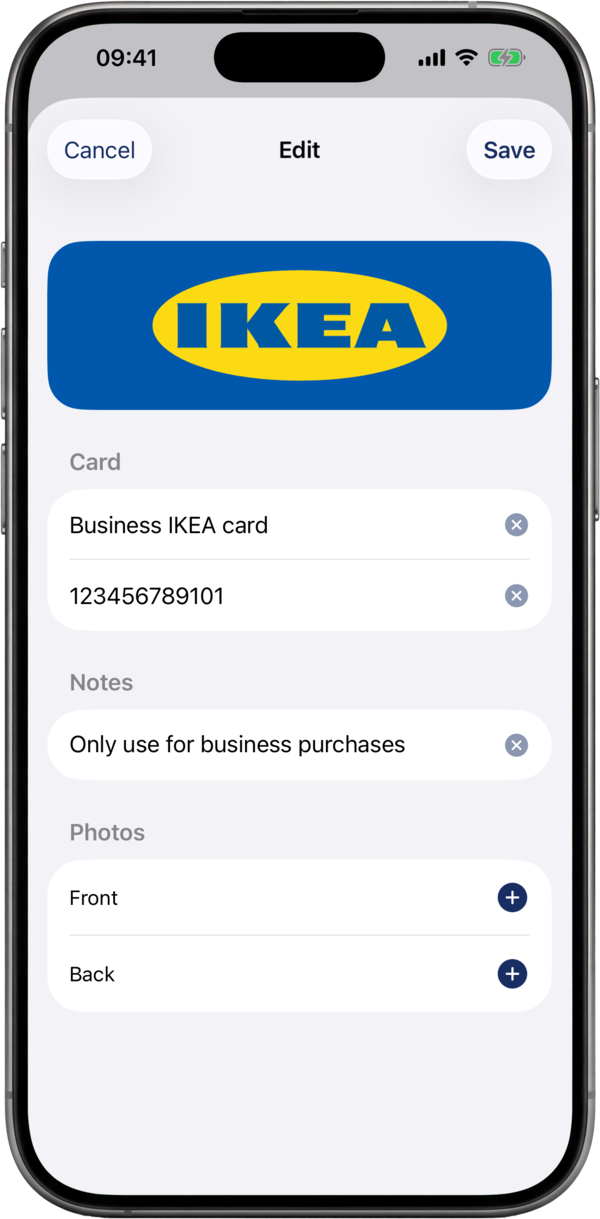
Group cards by grocery, fuel, pharmacy and more. Add notes for PINs at the kiosk or which family member the card belongs to.
Folders for cards that belong together
Group cards into a folder that sits among your cards. One brand inside and the folder takes its logo and color; several brands and it shows small logos of what is in it. Search still finds the cards inside, and ungrouping leaves every card where it was.
Make each card yours
Snap the front and the back
Add photos of the physical card, so the number on the back or a signature strip is there the moment a cashier asks.
Name it your way
Rename a card to whatever you actually call it, Mum's Tesco or just Gym, and it turns up the instant you search.
Sharing
Share a card in a tap
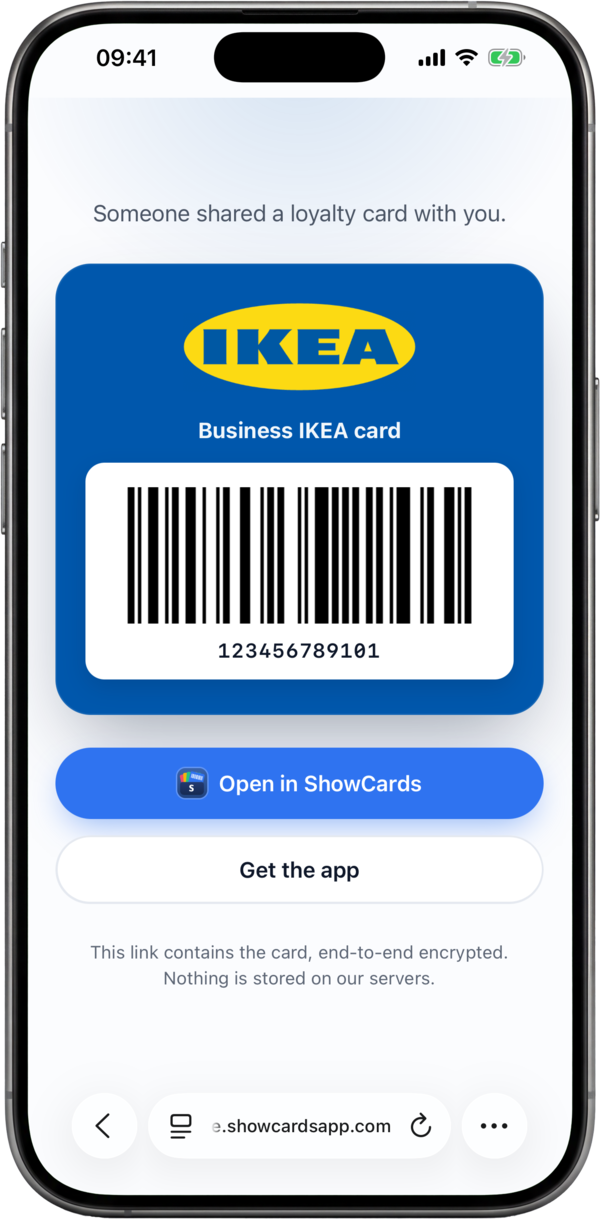
Send a loyalty card to family by an end-to-end encrypted link. The card rides inside the link itself, so nothing is stored on our servers.
Opens in any browser
They tap the link and the card appears in their browser, ready to scan. A button gets them the app to keep it for good.
Add to Apple Wallet
Keep a card in Apple Wallet
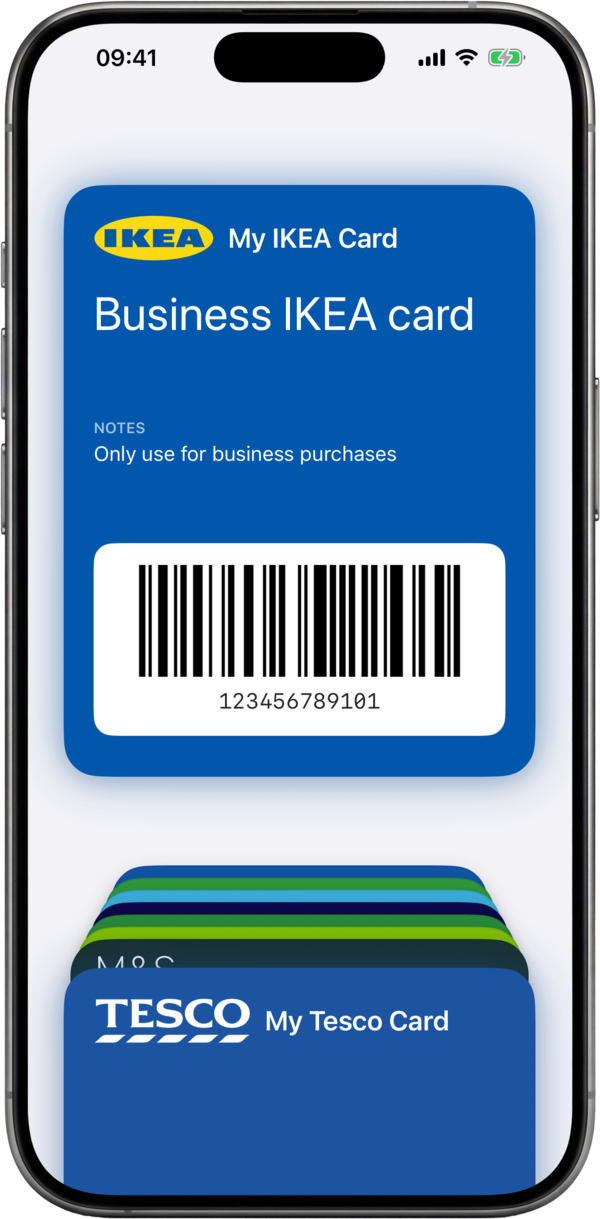
On iPhone, add any loyalty card to Apple Wallet in a couple of taps. It sits alongside your bank cards and boarding passes, a double-click of the side button away.
Built on your iPhone
ShowCards creates the Wallet pass on your device, with the card's barcode and name, then Apple Wallet shows it full-screen at the till.
On your home screen
Your card, one glance away
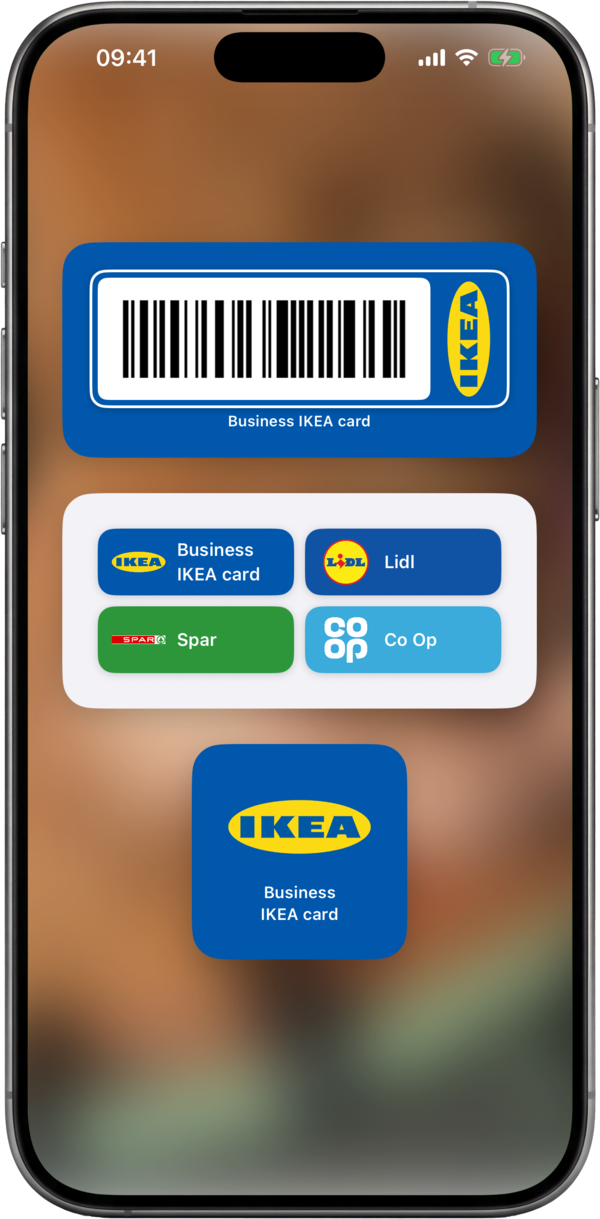
Add a ShowCards widget to your home or lock screen. Your most-used card sits right there, so you never have to open the app first.
A barcode, ready to scan
The barcode widget shows a scannable code straight away, and a tap opens the card full-size and full-brightness for the till.
Ask Siri for a card
On iPhone, ask Siri to bring up a card and it opens full-brightness, ready to scan. You can find any card from Spotlight search, too.
On your wrist
Cards on Apple Watch and Wear OS
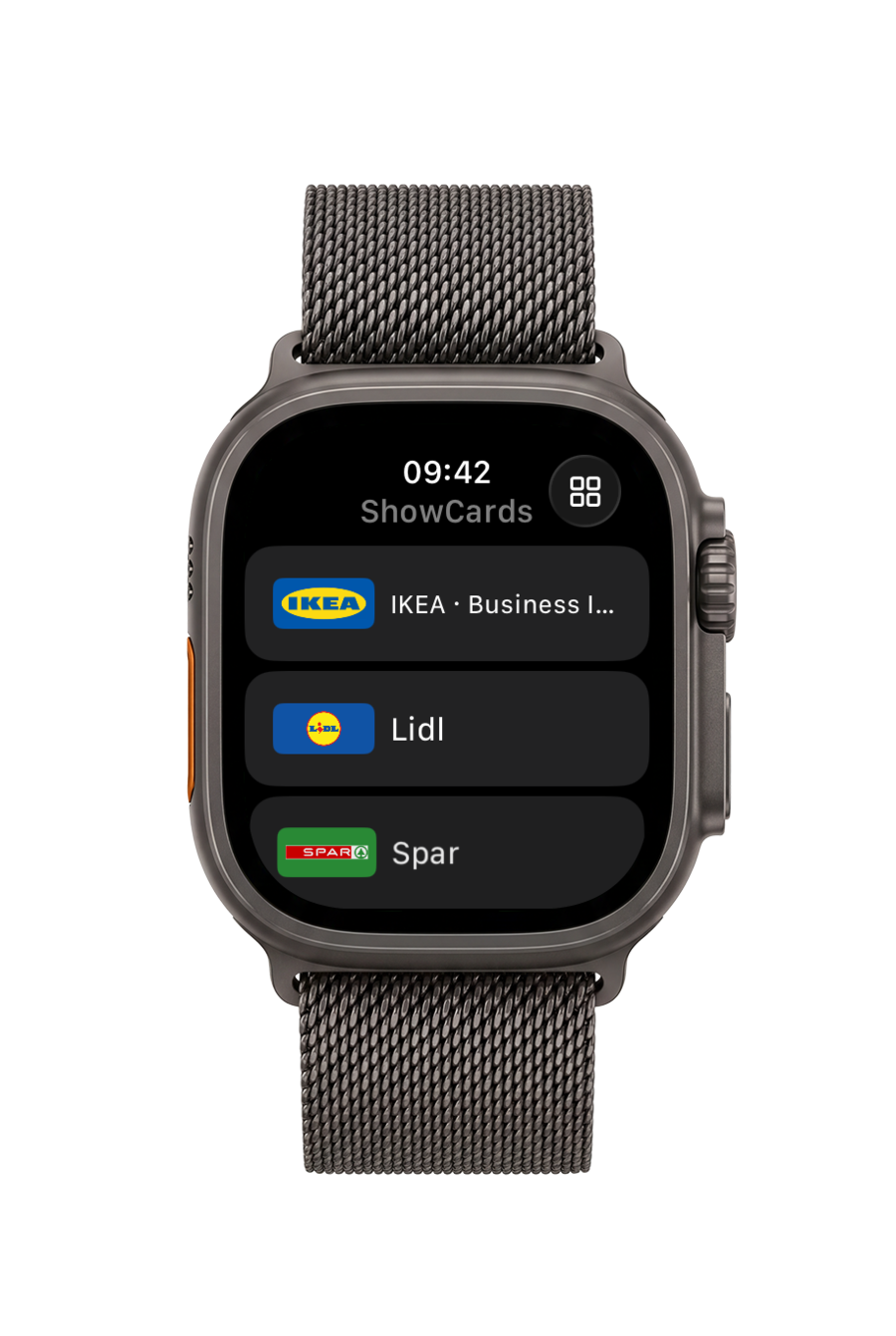
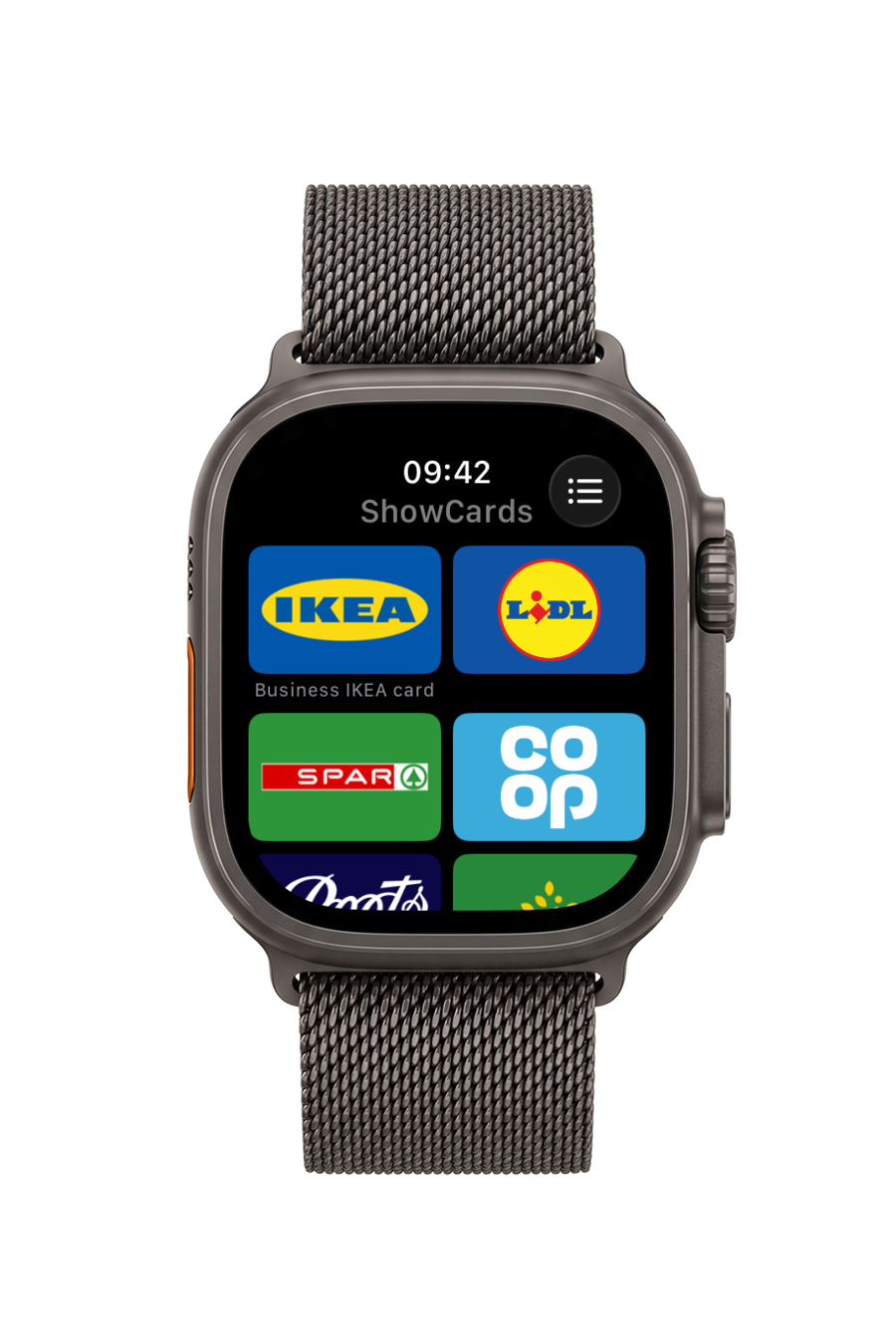
Leave your phone in your pocket. Your cards live on your wrist as a list or a grid of brand tiles, ready the moment you reach the till.
A barcode, straight from the watch
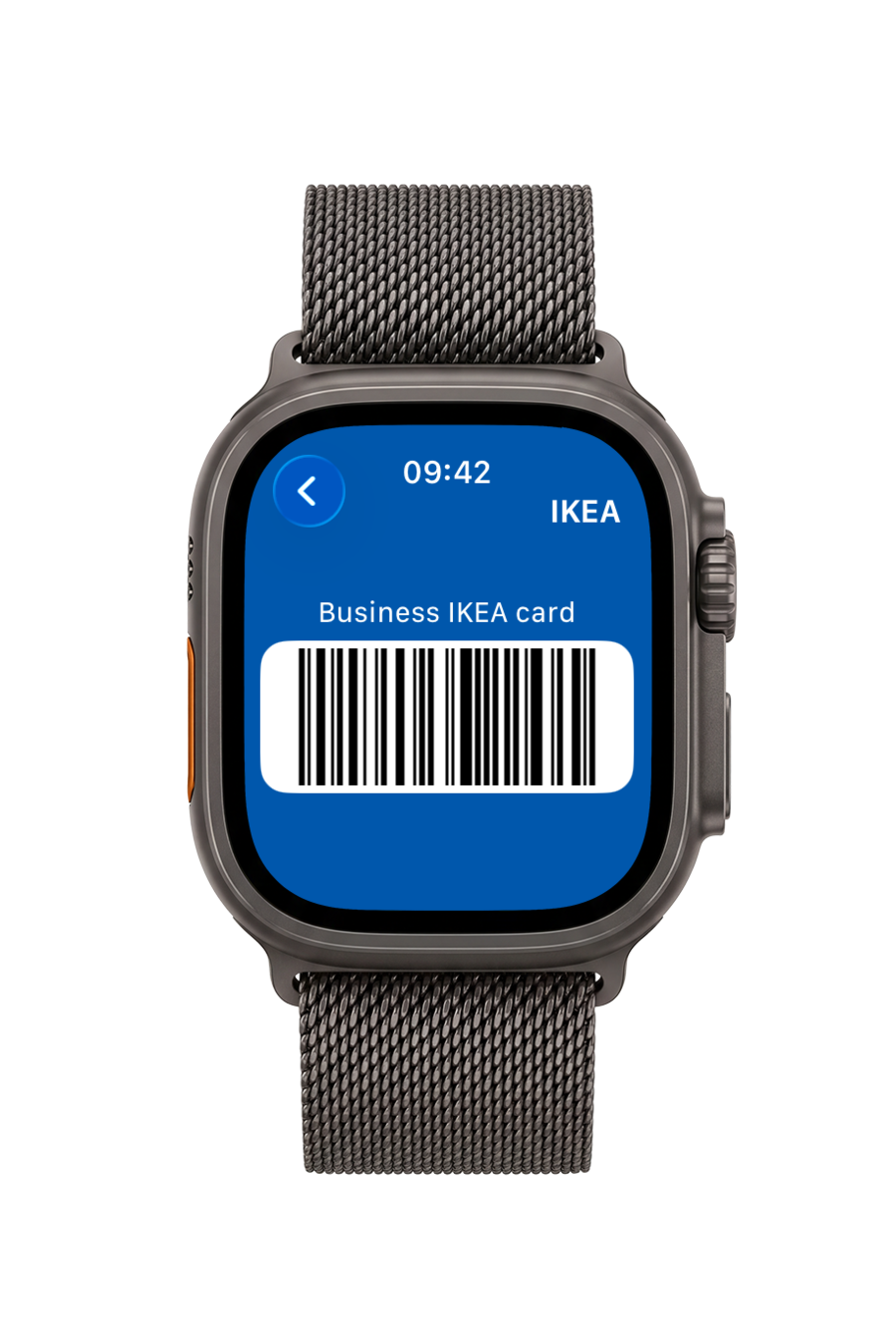
Tap a card and the barcode fills the watch screen. It works on its own, and your card numbers never leave your phone.
Sync & backup
Private cloud sync
Cards sync through your device's own private cloud, iCloud on iPhone, your Google account on Android. They appear on your other devices automatically; your card data syncs through your private cloud, not through servers of ours.
Move to a new phone
Switching phones? Send your whole wallet straight to the new one over an encrypted channel. Our server only introduces the two devices, it never sees your cards.
Encrypted export files
Export your whole wallet to a single file, protected by a passphrase you choose. Store it anywhere, restore it anywhere.
Read your own backup, anytime
Your encrypted export is not a black box. A free tool on this site turns it back into plain XML, JSON, CSV or Excel, right in your browser.
Security
AES-GCM field encryption
Card numbers are encrypted before they are written to storage. The encryption key is held in your device's secure keystore, the iOS Keychain or the Android Keystore, end to end.
Biometric app lock
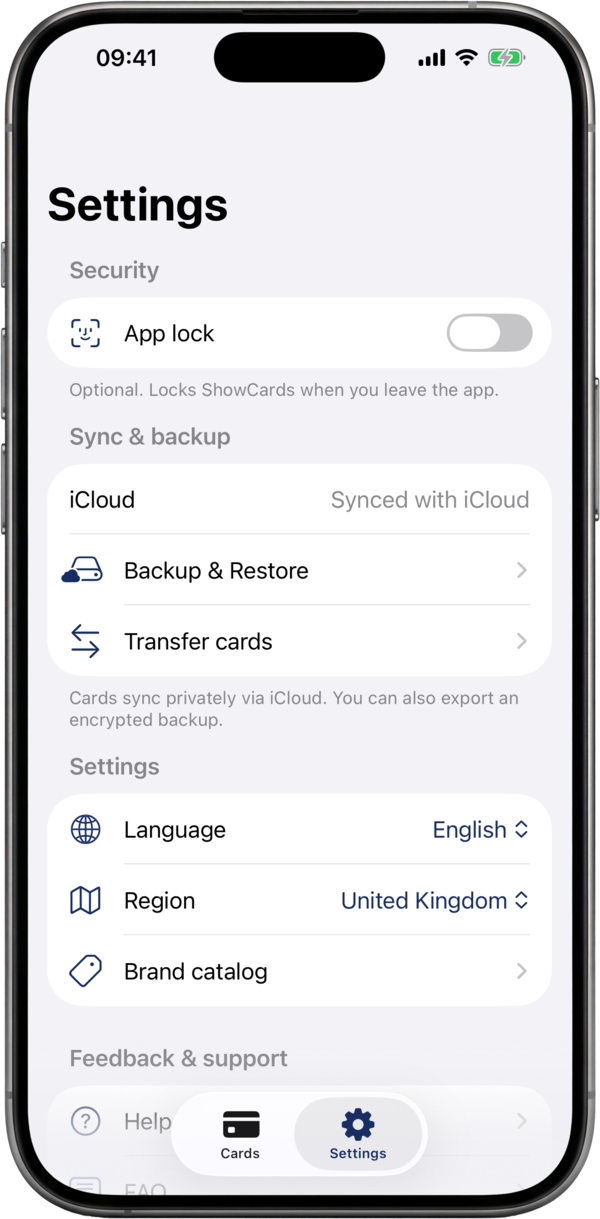
Optional app lock with Face ID, Touch ID or your fingerprint. Your wallet stays blurred until you authenticate, and locks again when you leave the app.
No account, nothing to sign up for
No email, no password, no ShowCards login. Install the app and start adding cards. Your wallet is yours from the first tap.
No tracking, no profiles
No ShowCards account, no cross-app tracking, and no advertising profile built from your wallet. Card numbers are encrypted on your device, we can't read them. Exactly what ShowCards handles is set out in our privacy policy.